Utilisez Hootsuite depuis vos outils d’IA préférés
Économisez du temps et améliorez votre flux de travail en reliant Perch, Nest ou Lumen à ChatGPT, Claude, Copilot et plus encore. Planifiez vos publications, triez les messages entrants et obtenez des informations d’écoute directement depuis votre compte Hootsuite – le tout depuis votre chat IA préféré.
Perch
Création, planification et publication de contenu
PerchMCP
Rédige une publication sur le lancement de notre produit pour chaque canal.
FONCTIONNE AVEC
Rédigez des publications, planifiez-les au meilleur moment, utilisez votre bibliothèque de contenu et analysez les performances depuis le chat.
URL du serveur MCP
mcp.hootsuite.com/perch
Lumen
Analyses et écoute
LumenMCP
Quelles sont les tendances de notre secteur, et comment se situe le sentiment envers notre marque ?
FONCTIONNE AVEC
Suivez les mentions et le sentiment, trouvez des influenceurs et résumez la veille concurrentielle depuis le chat.
URL du serveur MCP
mcp.hootsuite.com/lumen
Nest
Boîte de réception sociale et service client
NestMCP
Affiche les éléments urgents de la boîte de réception et attribue les prioritaires à l’équipe d’assistance.
FONCTIONNE AVEC
Triez votre boîte de réception, attribuez des conversations, répondez avec des réponses enregistrées et résolvez les problèmes depuis le chat.
URL du serveur MCP
mcp.hootsuite.com/nest
Parliament
Employee advocacy et amplification
ParliamentMCP
Crée une publication Parliament sur notre dernier lancement de produit et enregistre-la comme brouillon.
FONCTIONNE AVEC
Créez et gérez du contenu d’advocacy, ou découvrez et partagez des publications approuvées, le tout depuis le chat.
URL du serveur MCP
mcp.hootsuite.com/parliament
Reliez Hootsuite aux outils d’IA que vous aimez
Les serveurs MCP Hootsuite se connectent à ChatGPT et Claude via des connecteurs préconçus, sans configuration technique requise. Vous utilisez Gemini ou Copilot ? Sélectionnez votre produit Hootsuite pour obtenir votre URL de serveur MCP et partagez-la avec votre administrateur informatique. Vous avez besoin d’un compte Hootsuite ? Commencez votre essai gratuit ou demandez une démo.
Copy these ready-made prompts into ChatGPT, Claude, Gemini, or Copilot to publish content, manage conversations, and surface insights through your Hootsuite MCP servers.
LumenSummarization and insights
Check sentiment breakdown
A sentiment breakdown for a topic over the past 7 days.
Try this prompt
What's the sentiment breakdown for [topic] in the last 7 days?
Result: Understand overall tone at a glance instead of reading mention by mention.
PerchMulti-step / compound workflows
Schedule at best times
A workflow that finds top posting times, then drafts posts accordingly.
Try this prompt
Check the recommended posting times for next week, then create drafts for LinkedIn and X at the best slots using this copy: [copy]
Result: Get optimally timed drafts ready in one request, no manual lookup.
PerchPlanner & planned content
View launch week plan
A cross-profile view of everything planned for a specific date range.
Try this prompt
Show me everything planned across all profiles for launch week, June 23–27
Result: Confirm the full campaign calendar is aligned before a big launch.
PerchMulti-step / compound workflows
Summarize LinkedIn performance
A workflow that pulls metrics and turns them into a written summary.
Try this prompt
Pull our LinkedIn impressions and engagement for the past 30 days, then write me a short performance summary
Result: Get a ready-to-share performance recap without building it yourself.
PerchPublishing
Cross-post simultaneously
Create social media posts and publish them to X and Instagram at the same time..
Try this prompt
Post this to X and Instagram at the same time: [copy]
Result: Reach multiple audiences at once without publishing to each platform separately.
NestMulti-step / compound workflows
Summarize and flag inbox
A workflow that summarizes new conversations and flags urgent ones.
Try this prompt
Show me everything new in my inbox, summarise each conversation in one sentence, and flag any that look urgent
Result: Triage your whole inbox in seconds instead of reading each thread.
PerchSetup & discovery
Confirm publishing access
A check on which social profiles you're able to publish from your workspace.
Try this prompt
What social profiles do I have access to in my workspace?
Result: Know exactly where you can publish before you draft or schedule content.
PerchSetup & discovery
View available workspaces
A list of the workspaces you're entitled to access in Perch.
Try this prompt
What workspaces am I entitled to?
Result: Confirm the right workspace before you start building or publishing content.
PerchSetup & discovery
Check content libraries
A list of the content libraries and teams available to you.
Try this prompt
What content libraries do I have available?
Result: Find approved assets fast without searching through every team's library.
PerchSetup & discovery
List analytics providers
A view of the data providers available for analytics in your workspace.
Try this prompt
What data providers are available for analytics in my workspace?
Result: Know your reporting sources before pulling metrics or building dashboards.
NestSetup & discovery
View Nest workspaces
A list of the workspaces you have access to in Nest.
Try this prompt
What workspaces do I have access to in Nest?
Result: Confirm you're working in the right workspace before diving into conversations.
NestSetup & discovery
Check connected accounts
A list of the social accounts connected to your Nest workspace.
Try this prompt
What social accounts are connected to my Nest workspace?
Result: Know which channels are feeding your inbox before you start responding.
NestSetup & discovery
View available inboxes
A list of the inboxes set up in your Nest workspace.
Try this prompt
What inboxes do I have in Nest?
Result: Find the right inbox to work from without guessing where to look.
PerchPublishing
Publier maintenant sur LinkedIn
Publication immédiate de votre contenu sur une page LinkedIn connectée.
Try this prompt
Publiez ceci sur notre page LinkedIn Hootsuite dès maintenant : [copy]
Result: Créez des publications sur les médias sociaux et publiez-les instantanément sur LinkedIn.
PerchPublishing
Schedule a LinkedIn post
A LinkedIn post scheduled for a specific date and time.
Try this prompt
Schedule a LinkedIn post for June 24th at 9am ET: [copy]
Result: Turn your chat into a social media scheduler and stop setting reminders.
PerchPublishing
Schedule Instagram posts
A way to schedule Instagram content for a specific date and time.
Try this prompt
Schedule this Instagram post for [date] at [time]
Result: Plan and queue Instagram posts in advance without switching between apps.
PerchPublishing
Publish image to Facebook
An image published to Facebook with your chosen caption attached.
Try this prompt
Publish this image to our Facebook page with the caption: [copy]
Result: Get visual content live on Facebook quickly with the right messaging.
PerchPublishing
Publish video to Instagram
A video published to Instagram paired with your chosen caption.
Try this prompt
Post this video to Instagram with the caption: [copy]
Result: Share video content on Instagram fast, fully captioned and ready.
PerchPublishing
Find asset and publish
A library search paired with publishing that asset straight to LinkedIn.
Try this prompt
Find the SocialOS launch graphic in our content library and post it to LinkedIn with this caption: [copy]
Result: Go from asset search to live post in a single request.
PerchDrafts
Save a LinkedIn draft
Copy saved as an unpublished draft for your LinkedIn page.
Try this prompt
Save a draft for our LinkedIn page — don't publish it yet: [copy]
Result: Lock in content ideas without risking an accidental early publish.
PerchDrafts
Create scheduled draft
“A draft scheduled through your social media scheduler, ready for Planner.
Try this prompt
Create a draft scheduled for Friday at noon so it shows up in the Planner
Result: Get drafts into your content calendar without extra manual steps.
PerchDrafts
List all drafts
A full list of every draft currently saved in your workspace.
Try this prompt
List my current drafts
Result: See everything in progress in one place before you publish.
PerchDrafts
View scheduled drafts
A filtered list of drafts that already have a scheduled time.
Try this prompt
Show me only my scheduled drafts
Result: Quickly confirm your social media schedule, and what’s already queued up to go live.
PerchDrafts
View unscheduled drafts
A filtered list of X drafts without a scheduled publish time.
Try this prompt
Show me unscheduled drafts for our X profile
Result: Spot content that still needs a publish date before it's forgotten.
PerchDrafts
Update a draft
A revision applied to an existing draft using its ID.
Try this prompt
Update draft [ID] with this revised copy: [copy]
Result: Refine content in place without recreating the draft from scratch.
PerchPlanner & planned content
View LinkedIn schedule
A look at everything scheduled to publish on LinkedIn this week.
Try this prompt
What's scheduled on our LinkedIn profile this week?
Result: See your week's LinkedIn calendar at a glance, no digging required.
PerchPlanner & planned content
Check tomorrow's Instagram posts
A preview of what's queued to publish on Instagram tomorrow.
Try this prompt
What posts are planned for our Instagram account tomorrow?
Result: Catch scheduling gaps or conflicts a day before they go live.
PerchContent library
Browse content library
A full view of the assets currently stored in your content library.
Try this prompt
What assets are in our content library?
Result: See what's available to use before searching or requesting new assets.
PerchContent library
Find top-used images
A ranked list of the images used most often from your library.
Try this prompt
Find the most-used images in our content library
Result: Reuse proven, high-performing visuals instead of starting from scratch.
PerchContent library
Search tagged videos
A tag-based search for video assets tied to a specific campaign.
Try this prompt
Search for video assets tagged 'SocialOS' in our library
Result: Locate the right campaign videos fast without scrolling the full library.
PerchContent library
View available images
A filtered list of images that haven't expired and remain usable.
Try this prompt
Show me all available (non-expired) images in the library
Result: Avoid using outdated assets by seeing only what's still valid.
PerchRecommended times
Get LinkedIn best times to post
Recommended posting times for LinkedIn based on this week's data.
Try this prompt
What are the best times to post on LinkedIn this week?
Result: See the best time to post on LinkedIn based on this week’s data.
PerchRecommended times
Get the best time to post on Instagram
The best time and best day to post on Instagram, based on your data.
Try this prompt
What is the best time to post on Instagram?
Result: Publish when your Instagram audience is most active and engaged.
PerchRecommended times
Get the best time to post on TikTok
Try this prompt
When should I post on TikTok for the best engagement?
Result: Know exactly when to post on TikTok to maximize reach.
PerchRecommended times
Compare best posting times
Recommended posting times across Instagram and X for next week.
Try this prompt
When should I post to our Instagram and X profiles next week for highest engagement?
Result: See the best times to post on Instagram and X so you can plan next week's content around high-engagement windows.
PerchAnalytics
Track follower growth
A look at how a profile's follower count has trended over a chosen time period.
Try this prompt
How has our follower count changed on LinkedIn over the past 3 months?
Result: Spot growth trends fast without digging through separate analytics dashboards.
PerchAnalytics
List available metrics
A list of the analytics metrics available for your LinkedIn profile.
Try this prompt
What metrics are available for our LinkedIn profile?
Result: Know what you can measure before building a report or dashboard.
PerchAnalytics
View LinkedIn impressions
A 30-day impressions summary for your LinkedIn page.
Try this prompt
Show me impressions on our LinkedIn page for the last 30 days
Result: Gauge recent visibility on LinkedIn without opening a separate report.
PerchAnalytics
Daily Instagram engagement
A day-by-day engagement breakdown for Instagram across the month of June.
Try this prompt
Give me a daily breakdown of engagement on Instagram for June
Result: Spot daily engagement patterns instead of relying on a single monthly total.
PerchAnalytics
Top posts by impressions
A ranked list of your top 10 posts this month by impressions.
Try this prompt
What are our top 10 posts by impressions this month?
Result: Quickly identify which content performed best without manual sorting.
PerchAnalytics
Compare platform reach
A side-by-side reach comparison between LinkedIn and Instagram.
Try this prompt
Compare reach on LinkedIn vs Instagram for the past two weeks
Result: See which platform is driving more visibility right now.
PerchAnalytics
View X click data
A quarterly summary of click activity on your X profile.
Try this prompt
Show me click data for our X profile for Q2
Result: Understand how much traffic X content is driving over time.
PerchMulti-step / compound workflows
Find, schedule, and caption
A workflow that locates an asset and schedules it across two platforms.
Try this prompt
Find the launch graphic in our content library, then schedule it to LinkedIn and Instagram on June 24 at 9am ET with this caption: [copy]
Result: Go from asset search to a fully scheduled multi-platform post at once.
PerchMulti-step / compound workflows
Find and publish draft
A workflow that locates a specific draft, then publishes it immediately.
Try this prompt
List my unscheduled drafts, then publish the one about SocialOS to LinkedIn now
Result: Skip manual searching and get the right draft live in one step.
NestMulti-step / compound workflows
Notez les conversations pertinentes
Un workflow qui recherche des conversations par mot-clé et ajoute une note.
Try this prompt
Listez mes conversations ouvertes, puis ajoutez une note à toutes celles qui mentionnent SocialOS indiquant : « Semaine de lancement — surveiller attentivement »
Result: Signalez automatiquement les conversations pertinentes pour vos campagnes au lieu d’effectuer des recherches manuelles.
NestMulti-step / compound workflows
Flag and tag complaints
A workflow that finds complaints in comments and tags them for escalation.
Try this prompt
Show me comments on my last LinkedIn post, identify any complaints, and tag those conversations with the 'Escalation' topic
Result: Catch and route complaints immediately without manually reviewing every comment.
NestMulti-step / compound workflows
Auto-assign new conversations
A workflow to automate your social media inbox and update conversation status.
Try this prompt
Pull my inbox, find all NEW conversations, assign them to the support team, and mark them as pending
Result: Clear new conversations from your queue in one automated step.
NestMulti-step / compound workflows
Suggest resolvable conversations
A workflow that reviews conversations and recommends which ones to resolve.
Try this prompt
Read the top 10 conversations in my inbox and tell me which ones I can resolve based on the thread content
Result: Close out easy conversations faster with a ready-made recommendation.
NestMulti-step / compound workflows
Match reply to conversations
A workflow that pairs a saved reply with conversations it fits.
Try this prompt
Load the saved reply for 'Account access issue', then show me which conversations in my inbox it would apply to
Result: Find every conversation a template applies to in one step.
NestInbox overview
Surface top conversations
A ranked view of the most important conversations currently sitting in your inbox.
Try this prompt
Show me the top 25 conversations in my inbox
Result: Simplify social media inbox management by jumping straight to what matters.
NestInbox overview
Count inbox conversations
A total count of all conversations currently sitting in your inbox.
Try this prompt
How many conversations are in my inbox?
Result: Get a quick read on inbox organization before diving into conversations.
NestInbox overview
Vérifier les nouvelles et en attente
Une répartition du nombre de conversations nouvelles par rapport à celles en attente.
Try this prompt
Combien de conversations nouvelles et en attente ai-je ?
Result: Priorisez votre charge de travail en sachant ce qui nécessite encore une réponse.
NestInbox overview
View new conversations
A filtered view of only the newest conversations in your inbox.
Try this prompt
Show me what's new in my inbox
Result: Focus on fresh conversations first without sifting through older ones.
NestInbox overview
Check top of queue
A look at whichever conversation sits at the top of your queue.
Try this prompt
What's at the top of my queue right now?
Result: Know exactly what to tackle next without scanning the full list.
NestReading conversations
Read latest conversation
A read-out of the most recent conversation in your inbox.
Try this prompt
Read me the latest conversation in my inbox
Result: Catch up on the newest message without opening it manually.
NestReading conversations
Recap customer message
A quick recap of what a specific customer said in a conversation.
Try this prompt
"What did this customer say?" (after listing conversations)
Result: Get the gist of a conversation without rereading the full thread.
NestReading conversations
Afficher le fil complet
L'historique complet des messages pour une conversation spécifique.
Try this prompt
Afficher le fil complet de cette conversation
Result: Consultez l'historique complet des conversations en un seul endroit avant de répondre.
NestReading conversations
Check conversation status
A check on whether a conversation is new, pending, or resolved.
Try this prompt
What's the status of this conversation — new, pending, or resolved?
Result: Know where a conversation stands before deciding your next move.
NestReading conversations
Identifier l'expéditeur du message
Vérification permettant de savoir si un message provient d'une personne ou d'un système.
Try this prompt
Qui a envoyé ceci : une personne ou un système automatisé ?
Result: Répondez de manière appropriée en sachant si vous vous adressez à un véritable client.
NestReading conversations
View inbound & outbound
A full view of both incoming and outgoing messages in a thread.
Try this prompt
Show me all inbound and outbound messages in this thread
Result: See the full back-and-forth without piecing messages together yourself.
NestConversation status
Mark as resolved
A status change that marks a conversation as resolved.
Try this prompt
Mark this conversation as resolved
Result: Clear conversations from your active queue the moment they're done.
NestConversation status
Move to pending
A status change that moves a conversation into pending.
Try this prompt
Move this conversation to pending
Result: Keep your queue organized by flagging conversations still in progress.
NestConversation status
Bulk resolve conversations
A batch action that resolves several top conversations at once.
Try this prompt
"Resolve the top 5 conversations in my inbox" (compound workflow)
Result: Clear multiple conversations in one step instead of one by one.
NestAssignments
Check assignment options
A list of the people you can assign a conversation to.
Try this prompt
Who can I assign this conversation to?
Result: Find the right teammate to hand off a conversation to fast.
NestAssignments
Assign a conversation
A way to hand off a specific conversation to the right team member.
Try this prompt
Assign this conversation to [team member name]
Result: Get conversations to the right person fast, with no manual searching.
NestAssignments
Assign to a team
A handoff of a conversation to an entire team, not one person.
Try this prompt
Assign this to the support team
Result: Route conversations to the right team without picking an individual.
NestAssignments
Assign to team member
A handoff of a conversation to a specific person on a team.
Try this prompt
Assign this conversation to [member] on the support team
Result: Get conversations to the exact right person, on the right team.
NestCategorization
View available topics
A list of the topics set up in your Nest workspace.
Try this prompt
What topics are available in my workspace?
Result: Know your tagging options before organizing or categorizing conversations.
NestCategorization
Tagger avec un thème
Un tag de sujet appliqué à une conversation spécifique.
Try this prompt
Taggez cette conversation avec le sujet « Product Feedback »
Result: Gardez vos conversations organisées et faciles à filtrer par thème ultérieurement.
NestCategorization
Tag billing inquiry
A billing inquiry topic tag applied to a conversation.
Try this prompt
Tag this conversation as a billing inquiry
Result: Make billing-related conversations easy to find and report on later.
NestInternal notes
Add internal note
An internal note added directly to a specific conversation.
Try this prompt
Add a note to this conversation: 'Customer flagged for follow-up after launch week'
Result: Keep context and next steps visible for your whole team.
NestInternal notes
Summarize in a note
An internal note that summarizes what a customer asked about.
Try this prompt
Leave an internal note summarising what this customer asked about
Result: Save teammates time by capturing context without rereading the thread.
NestInternal notes
Add handoff note
A note added to a conversation right before it's assigned.
Try this prompt
Add a handoff note to this conversation before I assign it
Result: Hand off conversations smoothly with context the next person needs.
NestPosts & comments
View recent posts
A list of the posts you've recently published.
Try this prompt
Show me my recent posts
Result: Review recent activity without digging through each platform separately.
NestPosts & comments
Check LinkedIn posts
A list of everything published to LinkedIn over the past two weeks.
Try this prompt
What posts have I published in the last two weeks on LinkedIn?
Result: Review recent LinkedIn activity in one place, no scrolling required.
NestPosts & comments
View post comments
A full list of comments on your most recent LinkedIn post.
Try this prompt
Show me the comments on my most recent LinkedIn post
Result: See how people are responding without opening LinkedIn directly.
NestPosts & comments
Check Instagram comments
A summary of what people are saying on your latest Instagram post.
Try this prompt
What are people saying on my latest Instagram post?
Result: Understand audience reaction quickly without reading every comment yourself.
NestPosts & comments
Sort inbound vs replies
A breakdown of which comments are from customers versus your brand.
Try this prompt
Which comments on this post are inbound vs. brand replies?
Result: Separate customer input from your own replies at a glance.
NestPosts & comments
Check comment sentiment
A sentiment read on the comments left on a specific post.
Try this prompt
What's the sentiment on the comments for this post?
Result: Gauge audience reaction fast without reading every comment individually.
NestSaved replies
View saved replies
A list of the saved reply templates available to you.
Try this prompt
What saved replies do I have available?
Result: Find the right response template fast instead of writing from scratch.
NestSaved replies
View org templates
A list of saved reply templates shared across your organization.
Try this prompt
Show me the org-shared saved reply templates
Result: Use approved, consistent messaging without recreating it yourself.
NestSaved replies
Load a saved reply
A specific saved reply template pulled up and ready to use.
Try this prompt
Load the saved reply called 'Thanks for your feedback' so I can use it
Result: Respond faster with pre-approved messaging, no retyping required.
LumenExplore your projects and topics
View your projects
A full list of the Lumen projects set up in your workspace.
Try this prompt
List my Lumen projects
Result: See all your active projects in one place without hunting through menus.
LumenExplore your projects and topics
View project topics
A list of the topics configured within a specific Lumen project.
Try this prompt
What topics are configured in my Lumen project?
Result: Know what's being tracked before running searches or reports.
LumenExplore your projects and topics
View topic details
A detailed view of the setup and scope of a specific topic.
Try this prompt
Show me details for the [topic name] topic
Result: Understand exactly what a topic covers before using it.
LumenSearch and monitor mentions
Search recent mentions
A search for mentions of a brand or keyword within a recent time window.
Try this prompt
Search for mentions of [brand/keyword] in the last 7 days
Result: Catch relevant conversations quickly without manually searching every channel and simplify social media listening.
LumenSearch and monitor mentions
Find negative mentions
A search for recent mentions of a topic with negative sentiment.
Try this prompt
Find recent mentions of [topic] with negative sentiment
Result: Spot potential issues early without scanning every mention manually.
LumenSearch and monitor mentions
Top weekly mentions
A ranked list of the top mentions of a keyword this week.
Try this prompt
Show me the top 10 mentions of [keyword] this week
Result: See the most relevant conversations first, no manual sorting.
LumenSearch and monitor mentions
Compare brand mentions
A search covering mentions of both your brand and a competitor.
Try this prompt
Search for [brand] AND [competitor] mentions in the last 30 days
Result: Benchmark your visibility against a competitor in one search.
LumenTrends
Afficher les sujets tendance
Une liste des sujets actuellement tendance dans un secteur donné.
Try this prompt
Quels sont les sujets tendance dans [industry] en ce moment ?
Result: Transformez le chat en outil d’analyse du public pour repérer les conversations émergentes avant qu’elles ne deviennent des sujets d’actualité grand public.
LumenTrends
View mention volume
A breakdown of mention volume for a topic over 30 days.
Try this prompt
Show me a volume breakdown for [topic] over the last 30 days
Result: See how conversation volume has shifted over the past month.
LumenTrends
Find top influencers
A ranked list of the top voices discussing a specific topic.
Try this prompt
Who are the top influencers talking about [topic]?
Result: Identify who's shaping the conversation before you engage or outreach.
LumenTrends
Track mention timeseries
A day-by-day timeseries of brand mention volume over the past month.
Try this prompt
Get me a timeseries of [brand] mention volume for the past month
Result: Get deeper brand insights by visualizing exactly when mention spikes happened over the past month.
LumenSummarization and insights
Summarize topic chatter
A written summary of what people are saying about a topic.
Try this prompt
Summarise what people are saying about [topic] this week
Result: Get the gist of a topic without reading every mention yourself.
LumenSummarization and insights
View available metrics
A list of the metric keys available for reporting in your project.
Try this prompt
Show me available metric keys for my project
Result: Know what you can measure before building a report or query.
LumenSummarization and insights
Uncover Audience Insights
Try this prompt
What audience insights can you show me for [brand/keyword] this month?
Result: Understand who your audience is with data-backed social media insights.
LumenSummarization and insights
Spot Instagram trends
A trend scan of Instagram conversations and hashtags relevant to your industry.
Try this prompt
What are the top Instagram trends related to [industry/keyword] right now?
Result: Know what's trending on Instagram before you plan your next post.
Avec MCP, votre IA peut faire plus que répondre à des questions
Connectez-vous maintenant et commencez à créer du contenu, à gérer les conversations client et à découvrir des insights directement depuis votre assistant IA préféré.
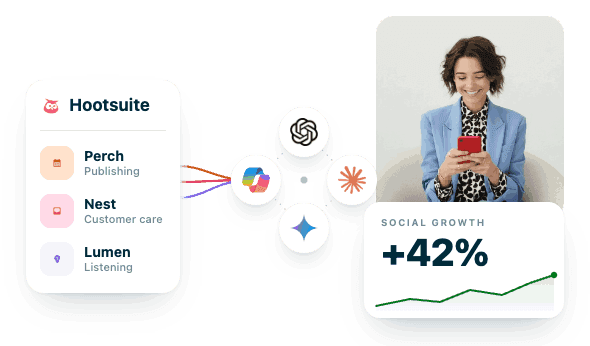
Femme souriante devant son téléphone, à côté du tableau de bord Hootsuite montrant une croissance des réseaux sociaux de + 42 % avec des outils de publication, de service client et de social listening.
Utilisez Hootsuite sans même ouvrir Hootsuite
Connectez les serveurs MCP Hootsuite à votre outil d’IA préféré et transformez les conversations en résultats réels. Créez et programmez du contenu, gérez les conversations client, décelez les tendances et dégagez des insights sociaux : le tout sans quitter ChatGPT, Claude, Gemini ou Copilot.
Hootsuite MCP (Model Context Protocol) relie des produits Hootsuite comme Perch et Lumen à des outils d’IA tels que ChatGPT, Claude, Gemini et Microsoft Copilot. Après connexion, vous pouvez utiliser le langage naturel pour créer du contenu, planifier des publications, analyser les performances, surveiller les conversations et gérer les interactions clients directement depuis votre assistant IA préféré.
Oui. Les serveurs MCP de Hootsuite permettent à ChatGPT d'accéder en toute sécurité à vos données et flux de travail Hootsuite. Vous pouvez demander à ChatGPT de rédiger des publications sur les réseaux sociaux, de programmer du contenu, d'examiner des analyses, de surveiller les mentions de marque, de résumer les conversations dans la boîte de réception, et plus encore – sans changer d’outil. La stratégie MCP de Hootsuite est conçue pour rendre la publication, l'écoute, les analyses et le service client disponibles dans les outils d'IA déjà utilisés par les équipes.
Oui. Les serveurs MCP Hootsuite sont conçus pour fonctionner avec des outils d’IA compatibles MCP, notamment Claude, Gemini, Microsoft Copilot et les autres assistants pris en charge. Après connexion, vous pouvez accéder aux données et aux workflows Hootsuite depuis la plateforme d’IA de prédilection de votre équipe. L'objectif de Hootsuite est de rendre les workflows liés aux réseaux sociaux disponibles partout où les utilisateurs travaillent, pas seulement dans l'interface Hootsuite.
Perch connecte la création, la planification, la publication et l’analyse de contenu sur les réseaux sociaux à l’assistant IA de votre choix. Rédigez des publications, planifiez du contenu, téléversez des médias, analysez les performances de vos campagnes, comparez les résultats entre les différents réseaux sociaux et accédez aux workflows de planification de contenu, le tout en langage naturel. Les premières fonctionnalités MCP incluent la publication, les brouillons, le téléversement de médias et les analyses inter-réseaux.
Nest connecte votre boîte de réception des réseaux sociaux et vos workflows de service client aux outils d'IA. Consultez les messages entrants, identifiez les conversations urgentes, triez les demandes d’assistance, résumez les commentaires des clients et gérez les interactions sur les réseaux sociaux directement depuis le chat.
Lumen intègre directement le social listening et l’intelligence dans votre assistant IA. Vous pouvez suivre les mentions de la marque, surveiller le sentiment, identifier les tendances émergentes, rechercher des concurrents, découvrir des influenceurs et analyser les conversations se déroulant dans votre secteur – tout cela avec une simple conversation.
Le serveur MCP Parliament vous permet de :
Découvrir du contenu : trouvez du contenu prêt à partager et découvrez des publications récentes et pertinentes à partir des thèmes et du flux de contenu Parliament.
Partager du contenu : partagez le contenu de votre choix sur l'un de vos profils sociaux personnels.
Planifier des publications : créez des plans de partage sur plusieurs jours en utilisant les heures de publication recommandées pour chaque réseau.
Consulter vos profils : affichez vos profils sociaux connectés.
Aucune expérience en codage n'est requise pour Claude et ChatGPT : vous pouvez vous connecter en suivant les étapes indiquées dans les paramètres de connexion de votre outil d'IA. Pour Gemini et Microsoft Copilot, la configuration nécessite un accès administrateur informatique. Après connexion, vous pouvez interagir avec Hootsuite dans un langage simple au lieu d'avoir à utiliser une API, du code ou des requêtes complexes.
Oui. Les serveurs MCP utilisent l'authentification et des contrôles des autorisations pour garantir que les outils d'IA n'accèdent qu'aux données et aux actions que vous autorisez. Les utilisateurs peuvent se connecter et se déconnecter des serveurs MCP à tout moment, et les autorisations restent liées à leur compte Hootsuite. L’implémentation MCP de Hootsuite prend en charge l’accès authentifié et les connexions contrôlées par l’utilisateur.
L'IA peut aider à rédiger, préparer et programmer du contenu dans les workflows de Hootsuite, mais les organisations conservent le contrôle sur la publication. L'évaluation humaine joue toujours un rôle important dans le processus d'approbation du contenu, car elle aide les équipes à garantir l'exactitude, la conformité et la cohérence de la marque. Les flux de travail de Wisdom et Hootsuite sont conçus selon un modèle axé sur l'humain.
Wisdom est l’espace de travail IA axé sur les réseaux sociaux de Hootsuite, qui aide les équipes à comprendre ce qui compte et à agir dans toute la suite Hootsuite. Les serveurs MCP rendent les capacités de Hootsuite disponibles dans des outils d’IA externes comme ChatGPT et Claude. Ensemble, ils permettent aux équipes de travailler avec l'intelligence et les flux de travail de Hootsuite, partout où elles le souhaitent. Wisdom est la couche conversationnelle reliant les analyses, la publication, le service client et l’écoute à travers l’écosystème Hootsuite.
Oui. Vous aurez besoin d’un compte Hootsuite actif et d’un accès au produit concerné (comme Perch, Nest ou Lumen) pour connecter son serveur MCP et utiliser ses capacités au sein de votre assistant IA. Les services Hootsuite MCP sont conçus pour étendre les flux de travail Hootsuite existants aux outils d’IA.
Connecter Hootsuite à ChatGPT, Claude, Gemini ou Copilot permet à votre équipe d'avancer plus rapidement. Plus besoin de jongler entre différents tableaux de bord : chacun peut poser des questions, générer du contenu, analyser les résultats, gérer les conversations et dégager des insights depuis une même interface de chat. Résultat ? Une réduction du travail manuel et une meilleure réactivité sur les réseaux sociaux.